Wednesday, June 17, 2009

How to setup Exchange on iPhone 2.0 Beta 3

Apple made a couple of changes to the Exchange configuration interface on iPhone 2.0 Beta 3. You can no longer enter a host name. When you begin configuring your Exchange account, you're asked to type in your Email, Username, Password and Description. It looks easy enough right? Wrong. If you're like me, you'll enter your email address, your user name, password and an account description. For example, my email address is vincent@iphonebuzz.com, username is vincent_iphonebuzz.com, and vincent exch for description and changeme for the password. If that's all you did, then you're in for a long wait. Make sure you have the server information handy because you'll need it. For the sake of this example, my email server info is webmail.iphonebuzz.com and DOMAIN is IPHONEBUZZ.
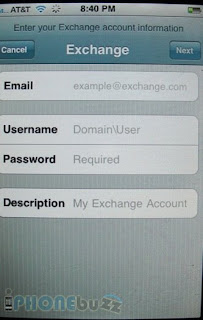
setup Exchange on iPhone

The system is trying to work up some magic to set up your account but based on the information provided, it just doesn't know what to do. You're going to end up one unhappy customer unless you know exactly how to enter the info correctly. Using my previous account information, here's the correct way to enter the information so that your iPhone can understand.
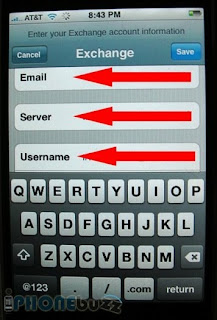
exchange server, setup exchange server

* Email: vincent@iphonebuzz.com should be entered as vincent.webmail.iphonebuzz.com
* Username: DOMAIN\username = IPHONEBUZZ\vincent_iphonebuzz.com
* Password: changeme
* Description: Vincent Exch
As soon as you click NEXT, a second field called Server miraculously appears (see image above). You will NEVER see this field if you INCORRECTLY enter info in the initial four fields. Instead, you will get "Verifying Exchange account information" message with the spinning progress icon and it never connects. Next, enter your Server info. In my case, my server is webmail.iphonebuzz.com. Click SAVE to continue. You should then see the same info in the screenshot below. Click Sync and you're good to go. Make sure to take NOTE that all data in your Contacts and Calendars will be erased when you first synchronize Exchange.

Source: http://www.iphonebuzz.com/how-to-setup-exchange-on-iphone-2-beta-3-152196.php

Friday, June 12, 2009

Google targets Microsoft Exchange Server

Search giant Google has kept its enterprise productivity offering - Google Apps - relatively low key until now. But a new plug-in designed to seduce businesses away from Microsoft Exchange Server as their communications back-end.

The clever bit is Google's acknowledgement that many people are just too used to the Outlook user interface to shift wholesale onto Gmail and its future derivatives. So it has created a plug-in called Google Apps Sync for Microsoft Outlook that lets you use Outlook to connect to Google Apps instead of Exchange Server.

This is an intriguing new twist to the Google, Microsoft battle. Just as Microsoft makes its move on Google's home turf with a new search engine, Google ripostes with an attack at the productivity market currently dominated by Microsoft Office. Fun!

Here's a video clip from Google explaining how it all works:


Full view here: http://channel.hexus.net/content/item.php?item=18815

Wednesday, June 10, 2009

Is SAN storage supported in Microsoft Exchange Server 2010?

In every Exchange 2010 document, you see direct attached storage (DAS) as the storage medium for Exchange 2010. This is for a number of reasons: The I/O requirements of Exchange 2010 are 10 percent of what they were for Exchange 2003, 30 percent of what they were for Exchange 2007. This means the I/O benefits of a SAN are typically no longer required. The single copy cluster model in Exchange 2007, which required the database to be on shared storage, is no longer supported in Exchange 2010. The only high availability configuration requires every node to have its own copy of the database. DAS is typically much less expensive to purchase than SAN storage.

That's not to say you can't use a SAN for the storage of mailbox data. SANs still have advantages over DAS in terms of Higher disk utilization (when you have dedicated storage on each box a higher percentage is left empty). Central point for backup and generally faster backup/restore technologies. Single point of management.

If you already have a SAN or want to consolidate storage, then you can certainly use a SAN for the storage of Exchange 2010 databases. However, the key item is to make sure you'd don't have any single point of failure. You shouldn't have each Exchange server in a Database Availability Group (DAG) storing its replica of the database on the same SAN, as this makes the SAN a single point of failure.

Look at the messaging for Exchange 2010. Ideally, you should use DAGs with at least three copies of every database. That is a lot more storage and a lot more mail servers, and these servers will all be running enterprise editions of Windows and Exchange, which isn't cheap. The use of DAS over SAN helps offset the cost of additional hardware and licenses.

Many organizations may use the SAN for storage of one copy of the data and then DAS or another SAN for other copies. You can mix DAS and SAN.

Source

Thursday, June 4, 2009

Exchange Server 2010 - New Features to Outlook Mobile

If you're tied to a corporate Exchange account, you may want to push for Exchange 2010 when it gets released into the wild by Microsoft. The new features adds some notable enhancements, including threaded email messages, which offers conversation view grouping by sender, similar to GMail and threaded SMS currently available on Windows Mobile 6.1. There is also voicemail transcription if your voicemail is connected to Exchange, which will transcribe your voicemail into true "visual voicemail."

Here's a run down of the features:

Exchange Server 2010 ActiveSync features

Block/Allow/Quarantine list: You can setup a single list to block/allow mobile devices as needed. You can also quarantine devices such as new untested devices, etc.

Over the Air Update Mode: You can now push new Outlook Mobile updates/new versions to Windows Mobile 6.1 and above. This is really nice since you no longer have to wait for a new Windows Mobile OS version to obtain a new version of Outlook Mobile.

SMS Sync: The ability to send SMS text messages through Exchange and EAS is used to sync SMS message with user’s mobile device.

Benefits of SMS sync:

•User can use OWA, Outlook, and Outlook Mobile to respond
•SMS messages are backed up on the server
•Recipients can respond to messages
•User can switch “screens” while still seeing all their messages

IMAP/POP3 service discovery: You can now autodiscover/autoconfigure the IMAP/POP3 settings from your mobile device by just specifying your email address.

Outlook Mobile features

Conversation View

Reply state: You can now see which emails you have replied to or forwarded.

Conversation actions: You can now ignore threads, move always threads to folders, etc from your mobile device. Ignore thread may become quite a popular feature.

Nickname cache: Very nice that your nicknames follow you now. Especially useful for external recipients you email often.

Voice Card: You no longer have to download the voicemail attached like before (right). You just hit play and hear the VM. The other feature that I really like is the ability to see a transcription of the voice mail in the body of the message. Very useful for meetings, noisy airports, where you can’t play the VM.

Get Free/Busy: It is awesome since you can now at a quick glance from your phone see the Free/busy info vs. breaking out the laptop, etc.

Source: http://pocketnow.com/index.php?a=portal_detail&t=news&id=7500

Thursday, May 28, 2009

Exchange Server 2007 Service Pack 2 available in Q3 2009

Microsoft Exchange Server 2007 is the industry's leading server for e-mail, calendaring and unified messaging. Exchange Server 2007 is the foundation for a dynamic and holistic unified communications experience, and has been designed to meet the challenges and address the messaging needs of today's businesses. Exchange Server 2007 Service Pack 2 (SP2) enables customers to increase their operational efficiency and it sets the foundation for the transition to Exchange Server 2010, which is expected to be available in the second half of 2009. A public beta of Exchange Server 2010 is available for download at http://www.microsoft.com/exchange/2010.

Customer Benefits

Key new features of Exchange Server 2007 SP2 unveiled today include:

  • Enhanced Auditing - New Exchange auditing events and audit log repository enable Exchange administrators to more easily audit the activities occurring on their Exchange servers. It allows the right balance of granularity, performance, and easy access to audited events via a dedicated audit log repository. This simplifies the auditing process and makes review of audited events easier by segregating audited events in a dedicated location.
  • Exchange Volume Snapshot Backup Functionality - A new backup plug-in has been added to the product that will enable customers to create Exchange backups when a backup is invoked through the Windows Server 2008 Backup tool. Exchange Server 2007 didn't have this capability on Windows Server 2008 and additional solutions were required to perform this task.
  • Dynamic Active Directory Schema Update and Validation - The dynamic AD schema update and validation feature allows for future schema updates to be dynamic deployed as well as proactively preventing conflicts whenever a new property is added to the AD schema. Once this capability is deployed it will enable easier management of future schema updates and will prevent support issues when adding properties that don't exist in the AD schema.
  • Public Folder Quota Management - SP2 enables a consistent way to manage quotas by improving the current PowerShell cmdlets to perform quota management tasks.
  • Centralized Organizational Settings - SP2 introduces new PowerShell option that enable centralized management of many of the Exchange organization settings.
  • Named Properties cmdlets - SP2 enables Exchange administrators to monitor their named property usage per database.
  • New User Interface for Managing Diagnostic Logging- SP2 enables Exchange administrators to easily configure and manage diagnostic logging from within the Exchange Management Console.
Source: http://bink.nu/news/exchange-server-2007-service-pack-2-available-in-q3-2009.aspx

Thursday, May 21, 2009

Update Rollup 8 for Exchange Server 2007 Service Pack 1

We have released Update Rollup 8 for Exchange Server 2007 Service Pack 1 (KB 968012) to the download center. The release of the rollup via Microsoft Update will happen on May 26.

As in the previous rollups, we have done a mix of product improvements (aka Critical Design Change Requests) and bug fixes. A few key ones which I would like to call out are as follows:

1. KB 969690 - We have fixed the bug introduced in Update Rollup 7 which caused the sender of the Delivery Status Notification (DSN) to be unresolved.
2. Disable kernel mode authentication in Windows Server 2008 for CAS servers - As documented here, it was required to manually take the additional step to configure the CAS servers running Windows Server 2008 to disable kernel mode authentication. Starting this rollup, the installer will configure this for you.
3. X-Header promotion to named properties- Change to the way X-headers are promoted to named properties. More on this in Jason Nelson's blog post Named Properties, X-Headers, and You.
4. KB 961606 - We have fixed a bug where Outlook Web Access (OWA) users may find that the font size of plain text messages is extremely small on third-party Web browsers.

KB 968012 has more details about this release and a complete list of all fixes included in this rollup.

As a follow up to the Exchange Server 2007 Service Pack 2 (SP2) announcement, all fixes in this Update rollup and the previous ones we have released for Exchange Server 2007 will be included with Exchange Server 2007 SP2. We will have a blog post soon which covers:

* When update rollups can be expected for Exchange 2007 SP2.
* Support plans for Exchange 2007 SP1 which will be in support as per the timeline in Microsoft's Service Pack Support Policy.

Source: msexchangeteam.com

Thursday, May 14, 2009

MailTips in Outlook 2010 and Exchange 2010

The next iteration of Microsoft's email client and messaging and collaboration server under the Office 2010 brand umbrella will bring to the table a new feature dubbed MailTips. Designed to deliver information to end users about the recipients of their messages even before they start writing the emails, MailTips is set up to increase workflow, and avoid common faux pas scenarios. According to Microsoft, MailTips will be available to users of Office 2010, Outlook Web Access and Exchange 2010. The Redmond company underlined that the feature would not be tweaked to offer backward compatibility, and as such legacy Outlook/OWA releases would not be supported.

“Have you ever sent a really well thought out, important email, only to find out (through an automatic response) that the recipient is on vacation for two weeks? For most of us, this means either waiting two weeks for a response or emailing an alternate contact. For the recipient, it means dealing with tons of messages when returning from vacation,” revealed E.J. Dyksen, from the Exchange Transport team. “This scenario is one of the many reasons we developed MailTips in Exchange Server 2010. MailTips are there to give you information about your message and its recipients before you hit the send button.”

MailTip is of course capable of displaying automatic replies for recipients to emails, but the feature delivers additional functionality. In this regard, Dyksen informed that MailTips would alert the users if a message was about to be sent to a large audience, or of situations in which the Reply All options would confirm to other users that certain messages were indeed received. At the same time, MailTips is designed to alert the user on emails that are going to people outside a particular organization, if the recipient's inbox is full, if the message itself is oversized, but also on invalid or restricted email addresses.

Source:news.softpedia.com/news/MailTips-in-Outlook-2010-and-Exchange-2010-110554.shtml