Showing posts with label Microsoft Exchange Server. Show all posts

Thursday, June 25, 2009

Microsoft Outlook Voice Access for Exchange Server 2007 by Apptix

Apptix, provider of hosted Microsoft Exchange email, Microsoft SharePoint collaboration services, and hosted VoIP phone service for small and medium businesses (SMBs), has announced the launch of Voice Access for Microsoft Office Outlook 2007.

The new service enables Apptix hosted Exchange Server 2007 customers to remotely access and interact with their email, calendar, contacts, or voicemail using any phone -land line or mobile via touchtone or voice commands.

Also, Apptix customers can easily get access to their Outlook calendars via a mobile phone or landline with this latest announcement. They can use voice prompts to reschedule or alert other participants that a meeting is delayed or that its scheduled time has changed and can also reply to emails by attaching a voicemail message to a distribution list in their Outlook Contact list.

Officials at Apptix said the power of advanced text-to-speech technology together with a hands free device, make it possible to solve many safety and legal concerns while continuing to provide on-the-go business professional with a solution for their needs.

"From email and attached documents to calendar and contact information, Outlook has become a central repository for employees' critical information," said Rick Rumbarger, Vice President of Product for Apptix.

Source: hosted-voip.tmcnet.com

Thursday, April 9, 2009

How to install the Microsoft Exchange Server Clustered Mailbox Role during Microsoft IIS error? How can I install it??

Answer:

First, make sure you've installed the required prerequisites: ISAPI Extensions Basic Authentication Windows Authentication IIS 6 Management Compatibility

The common cause for this error if you meet the prerequisites is that your .NET installation is incomplete or corrupt. When you attempt to install the Clustered Mailbox Role, you'll get the following error. An error occurred while creating the IIS virtual directory 'IIS://savdalex01.savilltech.net/W3SVC/1/ROOT/Exchange' on 'savdalex01'. Could not load file or assembly 'Microsoft.Web.Administration, Version=7.0.0.0, Culture=neutral, PublicKeyToken=31bf3856ad364e35' or one of its dependencies. The system cannot find the file specified.

The solution is to reinstall .NET 3.0, even though it may show as installed.

Source: Windowsitpro

Thursday, April 2, 2009

Exchange Tool Tests Remote Connections

Microsoft announced an online service for IT pros that enables them to test incoming e-mail traffic to Microsoft Exchange Server.

The tool, called Exchange Server Remote Connectivity Analyzer, was announced last week as a beta version. However, it's apparently been available as a test version since late last year.

The Microsoft Exchange team on Wednesday pointed to the availability of the beta version. The team's blog includes a video that demonstrates how the tool works, which can be accessed here.

The remote analyzer tool helps IT administrators assess server setup problems, particularly when e-mail clients located outside an organization's firewall are having problems trying to connect. While Exchange Server comes with its own test tools, those tools can only test traffic within an organization's firewall.

The Exchange Server Remote Connectivity Analyzer will test incoming e-mail traffic by simulating three client types, including Windows Mobile clients using Exchange ActiveSync, Outlook clients using Outlook Anywhere and clients that use SMTP.

You can run the tests for Windows Mobile and Outlook with autodiscovery turned either on or off.

The beta still has some usability limitations, and it requires certificates for some tests to work, according to the Exchange team blog. The team plans make those improvements in a future version, along with adding new tests for Exchange Web Services, IMAP, Outlook Web Access and POP.

The Exchange Server Remote Connectivity Analyzer tool, nicknamed "ExRCA," can be accessed for free online here.

Source: http://entmag.com/news/article.aspx?editorialsid=10734

Monday, March 30, 2009

Difference Between Microsoft Exchange Server Unified Messaging (UM) role & Microsoft Office Communications Server 2007

Exchange 2007 consists of a number of roles, one of which is the UM role. UM requires separate Client Access Licenses and enables the following additional functionality over standard Exchange: Unified store for email, fax, and voice messaging. The Exchange UM role controls the receipt of voicemail, configuration of answer message, fax receipt, and other functions.

Access to a unified store from both a computer and from a phone using voice commands (voice user interface) or numeric key presses (telephone user interface) which collectively are known as Outlook Voice Access. Phone access also includes the ability to search Global Address List, check calendars, accept/reject meetings, and an Auto Attendant is provided to give guidance on feature access.

Essentially, the UM role does exactly what the name suggests. It provides the ability to access your voice messages, fax, and email from a single location via computer or phone. The UM can hook directly into many IP PBX telephone systems that serve a specific business or company. Companies using traditional non-IP PBX systems must install a gateway between the PBX and the UM servers to facilitate communication.

OCS 2007 is a separate product from Exchange, but can integrate heavily with Exchange to give a complete communication solution. OCS 2007 focuses on real-time communication while Exchange is primarily a message store. OCS 2007 provides the following features: Secure and archivable IM for an organizations users with connectivity to public IM services such as Yahoo and Windows Live Messenger through Public IM Connectivity (PIC), which is a separate license. OCS can also federate with other organizations' OCS implementations to allow communication via IM with partner companies without the need to use public IM services.

Presence information showing if a contact is currently online, busy, in a meeting, or so on. This information is visible in many mediums, including Outlook and SharePoint, and can be used to initiate communication through IM, voice, or a meeting scheduling.
File Transfer capabilities.
Peer-to-peer and multiparty conferencing services, including voice and video with web accessibility. Live Meeting client is used to access the services or the web-based interface.

When you combine Exchange 2007, Exchange 2007 UM, and OCS, you have a Unified Communications solution which gives single store access to all your e-mail, fax, and voice messages. You also have a rich interface for real-time communication, whether it be voice, text, video, or meeting-based, with presence information available to help choose the best way to contact people. The traditional divide between your phone system and your computer-based solutions is removed with UC.

For full info visit: http://windowsitpro.com/mobile/pda/Article.cfm?ArticleID=101637&FAQ=1

Monday, March 16, 2009

Microsoft Exchange 14: Will it be a jackpot, Some Rumors?

First of all, it appears that Microsoft is making a sincere effort to make Exchange 14 more accessible to a wider user audience. Microsoft has indicated that Outlook Web Access (OWA), arguably the best Web mail product on the planet, will fully support Firefox and Safari. Until now, Microsoft has made the premium OWA experience available only to users running Internet Explorer, while users of other browsers faced limitations in the OWA Light experience.

Microsoft will also introduce Gmail-like conversation threads into OWA, helping users tame their inboxes. Finally, the new OWA will sport instant messaging capabilities with users able to see presence information for and send instant messages to other users in the organization — all from within the new Web client.

A user on the Microsoft Exchange Team Blog has also repeated a rumor that Exchange 14’s high-availability features will remove the need to use Microsoft Clustering Services. If this is true and is implemented correctly, a great level of complexity could potentially be removed from highly available configurations.

Here are some other items I’ve run across that are rumored to be included in Exchange 14:-

  • User-created distribution lists.
  • Users can manage some of their own information that is presented in the Global Address List.
  • Public folders. I list that here because there were questions as to whether Microsoft would jettison this legacy from the product. From most indications, public folders will remain fully supported in Exchange 14. However, an astute reader on the Exchange Team Blog did notice in the new OWA some reference to SharePoint where the Public Folder link belongs, so we’ll have to wait and see what happens.
  • The next version will be named Microsoft Exchange Server 2010.

I have only listed what seems reasonably true given the information that is out there. Some people are expecting that Exchange Server 14 will move away from the Jet database to a SQL backend. Personally, I doubt this will happen, but it is another rumor out there.

Source: http://blogs.techrepublic.com.com/datacenter/?p=689

Wednesday, January 28, 2009

Microsoft Exchange Server and PowerShell: Debate Continues

When Microsoft Exchange Server 2007 was released a little over two years ago, one of the biggest drawbacks in the minds of many admins was its reliance on Windows PowerShell. In fact, some of our readers were quite vocal and angry over this situation. The release of Exchange 2007 SP1 added more functionality to the GUI, Exchange Management Console (EMC), but certain tasks can still only be performed through Exchange Management Shell (EMS).

Last week, KC Lemson posted the first public information about Exchange 14 on the Microsoft Exchange Team Blog and invited people to reply with what features they're most interested in hearing about in the new version. I suppose it should be no surprise that at least part of the reader dialog that followed centered on this issue of PowerShell.

A commenter named Thomas wrote:

"I applaud the efforts to make more management tasks doable via the GUI instead of just in powershell. Exchange 2007 RTM was severely lacking in that respect with even common tasks like Send On Behalf permissions requiring long power shell commands. In small/medium organization's IT depts. we need to be Jack of All Trades (and masters of none) since 2 or 3 man IT depts. don't have the manpower to specialize in Exchange Management and memorize the long powershell commands."

Taking up the other side of the argument, Hal Rottenberg said:

"If you value your time, then you should be learning PowerShell, regardless of whether you work with Exchange or not. As they say, if you repeat it, script it."

I for one am a big fan of automation. I use Word 2007 just about constantly, and while I like the Ribbon interface, I still use macros with keyboard shortcuts for any functions I use frequently. Yes, it takes a few extra minutes to set those things up, but the benefits in the long run are worth it. Likewise, it seems like scripting common Exchange tasks with PowerShell would be well worth the time investment.

With the release of Exchange 14 looming, and its expected continued use of PowerShell through EMS, I'm wondering how Exchange Server admins are feeling about their management options now. I'd love to hear your stories: If you prefer to work through the GUI, what ways have you discovered to work around limitations in Exchange 2007? Or maybe you were resistant at first but have come to embrace the control EMS gives you. If you're using Exchange Server 2007, you can't avoid PowerShell


Source: http://windowsitpro.com/article/articleid/101326/microsoft-exchange-server-and-powershell-the-debate-continues.html

Friday, January 16, 2009

Implementing and Configuring Blacklist Support in Exchange Server 2003

Spam filtering software based on keywords, etc. is only one brick in the wall guarding against Spam; another one is to implement black- or block-list support within your messaging and collaboration environment. With the new release of Exchange, Microsoft implemented the functionality to filter every incoming email whether the sender is on a blacklist or not. Within this article you will learn how blacklists work and how you can configure support with Exchange Server 2003.

But Spam filtering software based on keywords, etc. is only one brick in the wall guarding against Spam; another one is to implement black- or block-list support within your messaging and collaboration environment. With the new release of Exchange, Microsoft implemented the functionality to filter every incoming email whether the sender is on a blacklist or not.

Learn how blacklists work and how you can configure Exchange Server 2003.

What are blacklists and how do they work?

f you perform a search with an internet search engine you will find lots of blacklist providers throughout the world. This means, the first thing you have to do is consider what blacklist provider you want to use. Nobody can say this or that blacklist provider is the best, you should make your own experiences but if you have a look at the recommendations of the IT press and testing results published in these magazines one of the following blacklist providers may be a good choice.

* relays.ordb.org
* relays.visi.com
* bl.spamcop.net
* blackholes.wirehub.net
* list.dsbl.org

If you have a look at one of these blacklist provider’s websites you will find an explanation on how blacklists work.

Each blacklist server is a special kind of service that can be compared with DNS services. If the SMTP-domain is on the blacklist it reports return status codes back to the checking messaging system providing special IP addresses.

Here is a list of the codes and what they mean:

127.0.0.2 è Open relay

127.0.0.3 è Dialup spam source

127.0.0.4 è Confirmed spam source

127.0.0.5 è Smarthosts

127.0.0.6 è Spamware software developer or spamvertized site (spamsites.org)

127.0.0.7 è Listserver that automates opts users in without confirmation

127.0.0.8 è Insecure formail.cgi script

127.0.0.9 è Open proxy server

By default, Exchange Server 2003 blocks all mails with one of these codes, but you can also configure the behavior as you want.

Configuring blacklist support with Exchange 2003

In Exchange Server 2003
you can find the feature for blacklist support within the global settings of your organization.
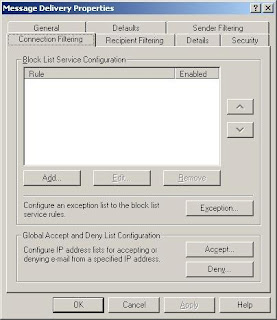
Configuring blacklist support with Exchange 2003 server

As seen above, you can implement multi-blacklist provider rules and put them in your own sequence. Exchange Server 2003 then checks every configured blacklist before it reroutes the email.

If you choose the button “Add” the following window opens:
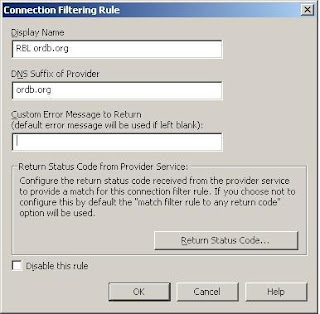
Microsoft Exchange Server 2003

In the field “Display Name” you should put in a brief description of the rule, in the second field you have to put in the DNS suffix of the blacklist provider itself. And by default, every return status code means a blocking of that email. If you are having trouble with your blacklist provider, just disable the rule by choosing the appropriate button.

If you want to configure a customized return status code behavior, make your choice and the following window will open and will provide your customized configuration.
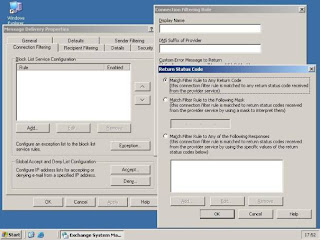


“Match Filter Rule to any return code” is the default setting and provides a blocking of every email that has a return status code. If you choose “Match Filter Rule to the Following Mask”, you can implement your own status code mask, provided by the blacklist company. If you need to implement customized return status codes, you have to choose the third radio button and then add your codes as shown below:
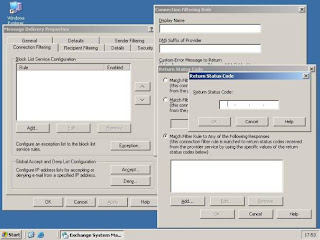
Microsoft Exchange Server

No rule without exceptions … Therefore you have a way to put in your exceptions by choosing the appropriate button. If you want to configure global IP accept and/or deny lists, this is possible, too. Just choose the “Accept” or “Deny” button.

The next step is now to check if everything runs. If it does not, in general the reason is not your Exchange Server 2003; check your DNS- and firewall settings. The Event log may be your friend, too.

But which servers in your messaging environment should have blacklist blocking enabled? Well, that is quite easy to say: that ones that receive email directly from the internet or via a smart- or relay host within your DMZ. It should be a server that reroutes every incoming email in your organization, and if there is more than one “front-end” server in your environment, you should configure all of them. In addition, don’t forget to check the filtering directory, if there are mails from companies that are on blacklists by accident. In general their entries will be deleted within 24 hours, but within that time window your users do not receive any email from that company.

Source:http://www.msexchange.org/tutorials/Blacklist_Support_Exchange_2003.html

Friday, January 9, 2009

Mimosa NearPoint for Microsoft Exchange Server 1.0

With an innovative approach to archiving Exchange data on the fly, Mimosa NearPoint for Microsoft Exchange Server 1.0 offers a robust solution for storing and maintaining corporate message data. Though you need some expertise and server capacity to set it up, once this solution is running, it largely succeeds at simplifying the lives of both administrators and end users.

We've all deleted or misplaced an important message in Exchange. Instead of having IT search through backup files, with NearPoint, users can search past messages (even deleted ones) using keywords and other criteria via the Quick Search option in Outlook. Matching results from the Mimosa archive are displayed, along with a message preview window, so you can find lost e-mails. An advanced search option presents more filter options and mimics Outlook's own search capabilities.

Better yet, NearPoint automatically moves user's e-mail attachments into its archive so that they are stored there instead of in user mailboxes. The admin tool let us define and tweak such rules with ease using criteria such as attachment size and message date. This ingenious approach essentially automates the all-too-common chore of users having to clean out mailboxes. We like the reporting available in the admin console, as well. There are about a half dozen reports here, including a useful size and usage report—a must to keep track of the growth and health of your Mimosa archive.

When it comes to installation, Mimosa ranks as one of the more challenging solutions that we've run up against. Setup requires a capable server (or two) with plenty of disk storage space. (One terabyte of disk space is recommended. RAID support is a virtual must for archiving.) Administrators will need to know their Exchange server infrastructure well and do capacity planning based on the number and size of user mailboxes.

Once Mimosa's MMC console is installed, it's exactly what busy IT administrators need to gain complete control over Exchange archiving. The console lets you perform both large and small tasks—like restoring an entire server, as well as individual mailboxes—with ease, along with support for scheduling jobs.

An additional potentially time-saving option in NearPoint allows designated "auditors" to search across multiple mailboxes to find relevant messages, which may be required for organizations meeting regulatory requirements or facing a legal discovery process. Behind the scenes, NearPoint admins can set policies for saving executive-level messages for a period of years, for example, to meet corporate standards. In accord with these policies, messages will be automatically saved or purged from the archive over time.

Source: http://www.pcmag.com/article2/0,2817,1922263,00.asp

Friday, December 26, 2008

Virtualization of Microsoft Exchange Server

Microsoft Exchange Server is a product which is used for making the purpose of emailing faster. This software is designed to make the work more efficient. Since nowadays the e-mail pays a vital role in the business dealings, so many companies are going for the Microsoft Exchange Server which has made their work much easier and faster. Microsoft Exchange Server not only has increased the reliability but also provides the feature if adding servers for other applications and hence its utilization makes the workload much easier.

The main advantage of the Microsoft Exchange Server is that it is used for providing security enhancement to many software packages.

Harmful threats like viruses spam and hackers can be neutralized by the use of this server.

Hence it is much more reliable and provides the confidence to the customers and employees that their email system is well protected and full potential utilization of their system can be done with the help of this server.

• Going for the virtualization of Microsoft Exchange Server: -

i. This server provides a cost effective technique and hence providing a simpler business environment. The use and costs of e-mails can be managed and hence the complexities which are increasing day by day can be controlled by the use of M.E. server.

ii. Besides the helpful features like flexibility, increase availability, reduction in cost, disaster recovery simplifications, your hardware products can be tested and provided with a valid virtual solution. This is the technique used in the virtualization of this server.

iii. These services are provided by the two leading software companies - Microsoft Exchange Server 2007 and VMware (leading data storage enterprise).

• Advantages of virtualization of Microsoft Exchange Server: -

It helps in increasing the reliability of the email system and also improves the disaster tolerant system by providing efficient infrastructure.

i. By encapsulating the Exchange Servers into virtual machines, it helps in simplifying the recovery of data for the improvement in the Exchange infrastructure.

ii. The VMware Infrastructure plays an important role in protecting the servers. So it is even more powerful technique with virtual machine.

It helps in improving the performance by the information exchange.

i. With the introduction of 'New 64-bit architecture' in Microsoft Exchange Server 2007, the performance of the system has improved as much more RAM usage can be done with the better coordination with VMware virtual machine.

ii. Hence better access to the disk can be done and more memory can be used.

Source: http://ezinearticles.com/?Virtualizing-of-Microsoft-Exchange-Server&id=1156138

Friday, December 19, 2008

Protect Data with Exchange Server 2007

Lucid8 delivers next-generation automated disaster prevention, optimization, protection, and recovery solutions for Microsoft® Exchange. Today, Lucid8 has over six-thousand product implementations to customers worldwide ranging from SMEs to Fortune 100 companies worldwide whose businesses depend on Microsoft Exchange 5.5, 2000, 2003, and 2007.

Fear of loss compels us to protect ourselves, our cars, our homes, our families and our friends. Our concerns for potential loss encourage us to take precautions to help mitigate risks. This is why most of us exercise, take our cars into the shop when they make unexplained noises or motions, and buy insurance policies in case of other catastrophic losses. I seriously hope that no one’s life is in danger from his or her messaging system, but I am fairly certain that most companies would be wounded should a catastrophic problem occur within the Exchange environment.

Exchange Server 2007 is as self-healing as Exchange has ever been, but without a healthy hardware platform, drivers, Active Directory, DNS, network, and regular policy management, it can go belly-up faster than you can say cardiac arrest. To make matters even worse, many Exchange administrators are not current with the latest CPR techniques nor have they been practicing preventive maintenance on their Exchange databases in order to minimize unplanned downtime. In this white paper, you will learn the bare and necessary facts you should know to proactively maintain your Exchange Server 2007 environment.

In order to download the Protecting Your Data with Exchange Server 2007 whitepaper, please fill out the form below: You will find form here:

http://windowsitpro.com/Whitepapers/Index.cfm?fuseaction=ShowWP&WPID=393a7bec-e173-483c-b887-95b1cf858e28&code=winflink

Tuesday, November 18, 2008

Microsoft Launches Online Exchange, SharePoint

Microsoft on Monday officially launched hosted versions of Exchange and SharePoint, two of its biggest on-premise cash cows, and continued to drive home the message that channel partners have nothing to fear from Microsoft's plan to move all its enterprise apps to the cloud.

Exchange Online and SharePoint Online are part of Microsoft's Business Productivity Online Suite (BPOS), which also includes Live Meeting and Office Communications Server, although the latter is still in beta and won't be available until next spring.

At a launch event in San Francisco, Stephen Elop, president of the Microsoft Business Division, said companies can reap cost savings of between 10 and 50 percent by moving to Microsoft-hosted SharePoint and Exchange services.

In July at Microsoft's Worldwide Partner Conference, some solution providers were upset by the commission structure for BPOS as well as by Microsoft's revelation that it would take over control of billing customers.

Exchange Online is priced at $10 per user/month, SharePoint Online per user/month is $7.25. Office Communications Server Online will be $2.50 per user/month, and LiveMeeting will be $4.50 per user/month. Microsoft will offer these services in one-year automatically renewing agreements.

At the Monday launch event, Elop insisted that Microsoft has maintained "a deliberate dependence" on its partner ecosystem by offering VARs the chance to develop recurring revenue streams.

To illustrate what Elop described as the "absolutely overwhelming" channel response to Exchange and SharePoint Online, Microsoft had several partners on hand to discuss deployment scenarios. These case studies helped underscore Microsoft's mantra that VARs can adapt their business models by focusing on value-added migration and customization services.

"The whole world is changing. It requires change, but it's representative of what's going on in the market today," said Elop.

Adam Smith, director of marketing at Phase 2 International, a Honolulu, Hawaii-based solution provider, says in the current economic environment, his customers are finding it easier to pay a monthly subscription as opposed to a major one-time capital expenditure.

Smith admits that the Microsoft's WPC announcement was initially ominous for Microsoft hosting partners, but said the practical realities of deploying on-premise Microsoft apps quickly dissolved those fears.

"We've never had a customer who was satisfied with an out-of-the-box, Microsoft application," Smith said. "Every customer, without exception, has required some level of support, training, integration, or customization."

Source: crn.com

Tuesday, October 21, 2008

Google Android Adds Microsoft Exchange Support

When Google, HTC, and T-Mobile unveiled the first Android-powered handset in September, many mobile professionals were disappointed with the lack of Microsoft Exchange support. At the time, officials from T-Mobile and Google said that could easily be remedied by a third-party developer.

With this in mind, Wrike and Intermedia have rolled out a free Android application that will enable users to sync their G1s Exchange servers.

The app, ContactsSync, doesn't offer full Exchange syncing, but it does let G1 users load their contacts onto the phone. Changes made on the phone won't be made to your server-based contacts, but the developers said that should change in the future.

The developers also plan full calendar syncing, but e-mail syncing is not in the cards.

"Users can access their e-mail from Exchange using IMAP, so we don't have plans to sync e-mail," Wrike's Valerie Sinitskaya told gadget blog Gizmodo.

Once the application is downloaded onto the handset, setup can be completed by entering your e-mail address and password for the Exchange e-mail account. There is also an advance setup that enables the user to change or manually configure the Exchange Web Services address.

The ContactsSync application can be downloaded here, and it should eventually be in the Android Market.

The G1 will officially launch Wednesday, and users can expect multiple applications to pop up addressing the lack of Exchange support. A full syncing app may not appear in the Android Market until content developers are allowed to sell apps, but it may show up earlier at Handango.

Via:informationweek.com/news/internet/google/showArticle.jhtml?articleID=211300019

Tuesday, October 14, 2008

Difference between MS Exchange Server 2003 and MS Exchange Server 2007

Exchange Server 2003(v6.5)(currently at Service Pack 2) can be run on Windows 2000 Server (only if Service Pack 4 is first installed) and 32-bit Windows Server 2003, although some new features only work with the latter.

Like Windows Server 2003, Exchange Server 2003 has many compatibility modes to allow users to slowly migrate to the new system. This is useful in large companies with distributed Exchange Server environments who cannot afford the downtime and expense that comes with a complete migration.One of the new features in Exchange Server 2003 is enhanced disaster recovery which allows administrators to bring the server online quicker. This is done by allowing the server to send and receive mail while the message stores are being recovered from backup.

Exchange Server 2007 was released in late 2006 to business customers as part of Microsoft’s roll-out wave of new products. It includes new clustering options, 64-bit support for greater scalability, voice mail integration, better search and support for Web services, better filtering options, and a new Outlook Web Access interface. Exchange 2007 also dropped support for Exchange 5.50 migrations, routing groups, admin groups, Outlook Mobile Access, X.400, and some API interfaces, amongst other features.

Key improvements of MCSE 2003. The principal enhancements, as outlined by Microsoft, are

  • Protection: anti-spam, antivirus, compliance, clustering with data replication, improved security and encryption
  • Improved Information Worker Access: improved calendaring, unified messaging, improved mobility, improved web access
  • Improved IT Experience: 64-bit performance & scalability, command-line shell & simplified GUI, improved deployment, role separation, simplified routing
  • Exchange Management Shell: a new command-line shell and scripting language for system administration (based on Windows PowerShell). Shell users can perform every task that can be performed in the Exchange Server graphical user interface plus additional tasks, and can program often-used or complex tasks into scripts that can be saved, shared, and re-used. The Exchange Management Shell has over 375 unique commands to manage features of Microsoft Exchange Server 2007.
  • Unified Messaging” that lets users receive voice mail, e-mail, and faxes in their mailboxes, and lets them access their mailboxes from cell phones and other wireless devices. Voice commands can be given to control and listen to e-mail over the phone (and also send some basic messages, like “I’ll be late”)
  • Removed the database maximum size limit. Database size is now limited by hardware capability and the window for backups and maintenance.
  • Increased the maximum number of storage groups and mail databases per server, to 5 each for Standard Edition (from 1 each in Exchange Server 2003 Standard), and to 50 each for Enterprise
Source:/blog.test4actual.com/?p=407

Wednesday, October 1, 2008

Avoid the Top Ten Microsoft Exchange Migration Headaches

Organizations are taking a serious look at Microsoft exchange Server 2007, which sits on the Microsoft Unified Communications platform. Despite its enterprise e-mail, shared calendars, contacts and voicemail integration with e-mail, some administrators are reluctant to adopt the technology, for fear of a lengthy and expensive migration process. But migrating email and data doesn’t have to be such an arduous task. Read on for our tips about how to avoid the most common Exchange migration headaches.

Headache #1: Cost

IT directors can anticipate the following costs when planning an Exchange 2007 implementation: software licenses for Exchange 2007 and any third-party vendor tools; any new equipment to support the migrated platform, including servers, networking equipment and power appliances.

Licensing and equipment costs need not be prohibitive. Prior to launching a migration project, check your license agreements, as you may already own an independent software license for Microsoft Exchange Server 2007 or it may be a part of the Microsoft Enterprise Agreement your organization already has in place.

Even with Exchange 2007’s requirement for 64-bit servers, equipment costs may be less then you budgeted. You may be surprised to learn that most of your organization’s current e-mail environment is already running on 64-bit hardware and that you can reuse it if you are careful to select an appropriate migration approach. If you do find that you require new hardware, consider a scalable solution that will make the most of your investment, such as a blade system.

Headache #2: Lack of Time and Resources

When your team is already buried eyeball deep in current projects and responsibilities, the prospect of undertaking a migration project can seem overwhelming. Tasks that will require IT staff time include: assessing current infrastructure; creating the technical architecture plan; preparing a proof of concept or pilot project for testing purposes and evaluating the results; writing a plan for product deployment; provisioning users and settings; and executing the migration while ensuring user functionality. Each of these tasks is equally important and complicated. But with the right third party tool for your migration project, none are impossible. Talk with the support team for the tool you have chosen and map out a migration plan of attack.

Headache #3: Lack of Experience

It’s a good idea to send any staff members that will be handling the migration to training prior to the project. Microsoft holds a number of on-campus sessions throughout the year that are worthwhile.

If sending staff long distances to training sessions isn’t in your budget for this year, there is an alternative: Microsoft Official Curriculum (MOC) courses were designed to help your staff understand the platform. MOC offers courses, workshops, clinics and seminars at Microsoft IT Academies located in cities around the world. So find one that’s close to you, and it’s a cost effective way for your team to learn the fundamentals about the Exchange 2007 platform.

Headache #4: Business Continuity Options

Researching and selecting which business continuity or disaster recovery options to implement with Exchange 2007 can be difficult.

You should first ignore the technical requirements and capabilities for each method and instead focus on your organization’s functional requirements and recovery situations. Only after you’ve defined your company’s uptime and recovery conditions should you compare these to the options that Exchange Server 2007 offers.

Pay attention to monetary requirements as you work through this process — you may need to cut your requirements if they exceed your budget or ask for a funding increase.

Headache #5: Downtime and Missed Messages

One of the biggest worries when migrating a mail system is downtime and missed e-mails. Proper planning is important to ensure there is no major or unexpected interruptions when redirecting internet e-mail flow and migrating user mailboxes.

If your organization communicates with customers and partners on a regular basis, you may want to consider upgrading or replacing internet facing servers early in the migration process. Inserting one or more Exchange 2007 Hub Transport or Edge servers into your internet e-mail flow is easy to do and helps guarantee that internet mail will be routed to Exchange once the mailboxes are migrated. Depending on your environment, it’s a good idea to learn about external DNS configuration and the forwarding logic of your gateway provider prior to this step.

Headache #6: Establishing Coexistence

The duration of a migration project is wholly dependent upon the size of the organization — it can take anywhere from a few weeks to a year to complete. Users need to be able to message one another and schedule appointments at all times, even while some accounts are on Exchange Server 2007 and others are still residing on the source messaging environment. All employees should see the same global address list, migrated or not.

Everyone should be able to continue work in the shared workspace; changes made to public folders should be visible to any user, regardless of whether he/she is located on the source or the target system. The two messaging environments must coexist effectively.
Coexistence requires synchronization in three key areas: directory, public folder and calendar. The two systems need to be exact copies throughout the migration project. Synchronization should be two-way so that whenever end users update one environment, the change is replicated in the other.

Third-party vendor tools can help with this part of the migration. Look for a product that can synchronize all Active Directory and Exchange data, such as public folders, calendar information and mailbox information.

Headache #7: Migrating from non-Exchange Platforms

Not all organizations are running previous Exchange platforms – some are working with non-Microsoft messaging systems, such as Novell GroupWise orIBM Lotus Notes. Migrations from these platforms to Exchange 2007 are challenging, but not impossible.
Some of the major differences between Exchange and other messaging platforms that can pose a problem are:

  • Exchange 2007 uses Active Directory for its user directory; other manufacturers implement their own directories. Maintaining contact information, settings and user profiles are major issues to be taken into account.
  • The certificate and encryption services that guarantee communication between users and external contacts are applied differently in alternate messaging platforms.
  • Group policies and security models for login and management are different.

There are many solutions in the market that manage migrations from non-Microsoft platforms to Exchange 2007. Companies such as Transend andQuest Software all offer migration products that work with multiple messaging systems. The most important thing to look for in a migration tool is coexistence for migrated and non-migrated users, and a product that guarantees no lost data or downtime. Additional handy features include the ability to automate processes, handle parallel migrations and move archives. Reducing costs and saving staff time are nice functionalities as well.

Headache #8: Storage and Regulatory Compliance

It is critical to evaluate your current environment. Growing organizations often don’t have the mailbox storage quotas or e-mail retention policies needed to maintain database performance. Prior to the migration, assess your current processor, memory and storage use. Talk to legal or human resources to minimize any legal risk and remain compliant with all applicable regulations if you find that mailbox sizes are out of control.

Archiving e-mail before migrating is the best way to reduce the overall volume of e-mail data that needs to be migrated, which can end up saving your organization time and money. Besides lessening storage requirements in the new environment, archiving before you migrate reduces the risk of losing messaging data.

Headache #9: Public Folders

Information stored in public folders will also need to be migrated to the new Exchange environment. The Exchange Server 2007 Service Pack 1 has a new graphical interface for public folder migration and management that helps you easily push the public folder hierarchy from one server to others in the organization.

Rather than migrate all public folders to Exchange 2007, some organizations have decided to move them to SharePoint. Look for a tool that offers automated migration (both individual or on a bulk basis), scheduled migration, content synchronization, permission mapping and multiple migration job handling.

Headache #10: Third-Party Product Integration

Many times through the course of this article, we have suggested using a third-party tool to assist your migration project – modern messaging systems are almost never deployed without one. Third-party integration usually includes one or more of the following: backup agents, antivirus software, message archiving and fax integration. Check with your vendors for versions of their software that support Exchange 2007, as well as guidance for migrating their software.

Test the new versions of software to guarantee that it has the same functionality and that it can run parallel with the old version. If the product has an Outlook component, confirm that it can run with your new version of Outlook.

Source:hdvoice.tmcnet.com

Monday, July 21, 2008

Exchange Topology Discovery in Exchange 2003

To enable Exchange Topology Discovery, we must first enable Agent Proxy and then configure overrides.
1. Enable Agent Proxy configuration on all managed Exchange servers. In the Administration pane, under Administration, Device Management, Agent Managed, right-click on each Exchange server, select Properties, then the Security and check the box Allow this agent to act as a proxy and discover managed objects on other computers. This step will also make exchange cluster instances to appear in the Agentless Managed section.

2.In the Authoring pane of the Operations Console, click Object Discoveries. In the Object Discoveries pane, right-click Exchange 2003 Topology Discovery, point to Overrides, point to Override the Object Discovery, and then click For a specific object of type: Exchange 2003 Role . Select the desired server running Exchange Server 2003 from Matching objects (do it for both), and then click OK . In the Override Properties dialog box, select Override for the Enabled parameter, and then select True from the Override Setting drop-down list. Select the Management Pack to save the override in, and then click OK.
The previous procedures will enable topology view of your Exchange Organization.
More on Microsoft Exchange Server Support>>
Microsoft release Exchange Servers
Exchange Server 2003
Exchange server support

Monday, July 14, 2008

Microsoft release Exchange Servers

As mentioned above, that data from a Microsoft Exchange server to your computer. This means instead of you having to manually press a button to poll the server and ask for changes, or set up a scheduled polling as soon as something changes on the server, it automatically sends the update out.

Every device being handled by a single central Network Operations Center (NOC), devices can connect to any Windows Server running Exchange (typically your business’ Exchange Server).

Microsoft's prices have always been geared to be affordable for the masses. And when entering a new market, it seems to always start low-ball. Microsoft today finally revealed how it will price online services, including Exchange and SharePoint, and how it will share revenue with partners. The company used its annual Worldwide Partner Conference to detail two bundles of services, one that targets workers who spend little time with a PC and one tailored for "information workers" that includes collaboration tools, portals, instant messaging/presence and Web conferencing. When doing the math for Microsoft's new services bundles, has it continued with the affordable theme? The jury is out.

An "information worker" bundle will be priced at $15 per month (and includes hosted versions of Exchange and SharePoint services with the not-yet-popular Office Communications Server and Live Meeting). Given that the average enterprise refreshes its desktops and software every three to five years, this equates to $540 per user for a three-year cycle. Will that save you money over the per-seat licenses you pay for now for Exchange?

If desktop support really does go away because users are getting the service from the cloud (but come on, how likely is that?), then this is probably a bargain. Hardware costs are killed -- that's true -- but they are relatively cheap these days and network costs could rise. High-volume deals can certainly do better than $15 per seat, too.

The entry-level services fee at $3 per user, per month, seems more in line, but the limited service may not fit the average enterprise. And of course, Microsoft's channel gets hosed when an online service is only $36 per user, per year, and includes no hardware. At 12% for the first contract and only 6% in years after, it takes an awful lot of users to make a living selling the Microsoft cloud. Microsoft resellers tend to service the small business, not the enterprise, so it's hard to see how they will benefit from this pricing scheme, except if they can tack on additional server service fees to the sales. In that case, buyers beware.

Even so, a much bigger concern for all users will be data portability. How will Microsoft "lock in" its customers once they move to the cloud? Will it hold customer data for ransom, or will a customer be able to grab its data and switch vendors anytime it wants to?

Tuesday, July 8, 2008

Exchange Server 2003

Exchange Server 2003 (v6.5) debuted on September 28, 2003. Exchange Server 2003 (currently at Service Pack 2) can be run on Windows 2000 Server (only if Service Pack 4 is first installed) and 32-bit Windows Server 2003, although some new features only work with the latter. Like Windows Server 2003, Exchange Server 2003 has many compatibility modes to allow users to slowly migrate to the new system. This is useful in large companies with distributed Exchange Server environments who cannot afford the downtime and expense that comes with a complete migration.
One of the new features in Exchange Server 2003 is enhanced disaster recovery which allows administrators to bring the server online quicker. This is done by allowing the server to send and receive mail while the message stores are being recovered from backup. Some features previously available in the Microsoft Mobile Information Server 2001/2002 products have been added to the core Exchange Server product, like Outlook Mobile Access and server-side ActiveSync, while the Mobile Information Server product itself has been dropped. Better anti-virus and anti-spam protection have also been added, both by providing built-in APIs that facilitate filtering software and built-in support for the basic methods of originating IP address, SPF ("Sender ID"), and DNSBL filtering which were standard on other open source and *nix-based mail servers. Also new is the ability to drop inbound e-mail before being fully processed, thus preventing delays in the message routing system. There are also improved message and mailbox management tools, which allow administrators to execute common chores more quickly. Others, such as Instant Messaging and Exchange Conferencing Server have been extracted completely in order to form separate products. Microsoft now appears to be positioning a combination of Microsoft Office, Microsoft Office Live Communications Server, Live Meeting and SharePoint as its collaboration software of choice. Exchange Server is now to be simply e-mail and calendaring.
Source:wikipedia.org